# Publish protobuf as an NPM package
In this blog, we will generate TypeScript files from the protobuf files and publish them as an npm package.
We will be using the protobuf files that were created in [my last post](/blogs/grpc-with-nodejs-typescript).
The protobuf files are in a monorepo, causing some issues when containerizing the services with docker. Thus we will publish these protobuf files to a registry as an npm package and use the registry package inside the services instead of the symlink.
Some sections of this blog will be about versioning and publishing packages from a monorepo. You can skip those parts if you don't have a monorepo.
To manage the versions of the packages we will use `changesets`. There are other tools like `lerna` etc which can do same thing, but I prefer `changesets`. Read more about changesets here
We will install the `@changesets/cli` package and run the `init` command. This will create the `config.json` file for `changesets` inside the `.changeset/` directory.
```sh
npm install @changesets/cli && npx changeset init
```
Lets change the current working directory to the protos package. We will make few changes in `package.json` and `build.sh` files.
```sh
cd packages/protos
```
First, we will update the output path for TypeScript files to `dist/ts`. We are doing this so that we can support other languages as well.
`build.sh`
```sh
#!/bin/bash
protoc --plugin=$(npm root)/.bin/protoc-gen-ts_proto \
--ts_proto_out=dist/ts \
--ts_proto_opt=outputServices=grpc-js \
--ts_proto_opt=esModuleInterop=true \
-I=src/ src/**/*.proto
```
We also need to install 2 packages as dev dependencies. `mkdirp` and `rimraf`. We need them to clean the `dist/ts` directory before every build.
```sh
npm i -D mkdirp rimraf
```
Then in the `package.json` file, we will add the `prebuild` and `postbuild` scripts. The `pre` and `post` prefix scripts auto-run before and after the script with the matching name. Read more about them here.
`package.json`
```json
"scripts": {
"prebuild": "rimraf dist/ts && mkdirp dist/ts",
"build": "./build.sh",
"postbuild": "cp package.json ./dist/ts",
"test": "echo \"Error: no test specified\" && exit 1"
},
```
The `prebuild` script will delete the `dist/ts` and recreate it. So every time we run the `build` script, we will get new files and not any files from previous builds.
The `postbuild` script will copy the `package.json` file to the `/dist/ts` folder. As we will publish only that folder as an npm package. This is because the current directory will have other files as well like `.proto` files, and other language generate files. We don't want them in the npm package. Plus the import paths will look clean as the files are next to the `package.json` file.
We will publish the `protos` package to npm with github actions. Thus we need to create a workflow file to build and release the package. The file should be in the `.github/workflows` directory otherwise the action will not run.
```sh
mkdir -p .github/workflows
touch .github/workflows/proto-npm-release.yml
```
In the workflow file, we will configure that the action will only run when a tag with the prefix as the package name is pushed. We will create a job named `publish` in the file. In the `Setup Node` step, we will pass `registry-url` and `scope`. This will create a `.npmrc` file that uses the `NODE_AUTH_TOKEN` environment variable for auth. So update the `org-name` as per your npm org. And in the `Publish packages`, we will change the current directory to `packages/protos/dist/ts` and run the `npm publish` command from there.
`.github/workflows/proto-npm-release.yml`
```yaml
name: Release
on:
push:
tags:
- "@/protos@*"
jobs:
publish:
name: Build and Publish
runs-on: ubuntu-latest
steps:
- uses: actions/checkout@v3
with:
fetch-depth: 0
- name: Setup Node
uses: actions/setup-node@v3
with:
node-version: "16.x"
registry-url: "https://registry.npmjs.org/"
scope: "@"
- name: Install Protoc
uses: arduino/setup-protoc@master
with:
version: "3.x"
- name: Install and Build Packages
run: |
cd packages/protos
npm install
npm run build
- name: Publish packages
run: |
cd packages/protos/dist/ts
npm publish --access public
env:
NODE_AUTH_TOKEN: ${{ secrets.NODE_AUTH_TOKEN }}
```
We need to generate a token in npm to publish the packages.
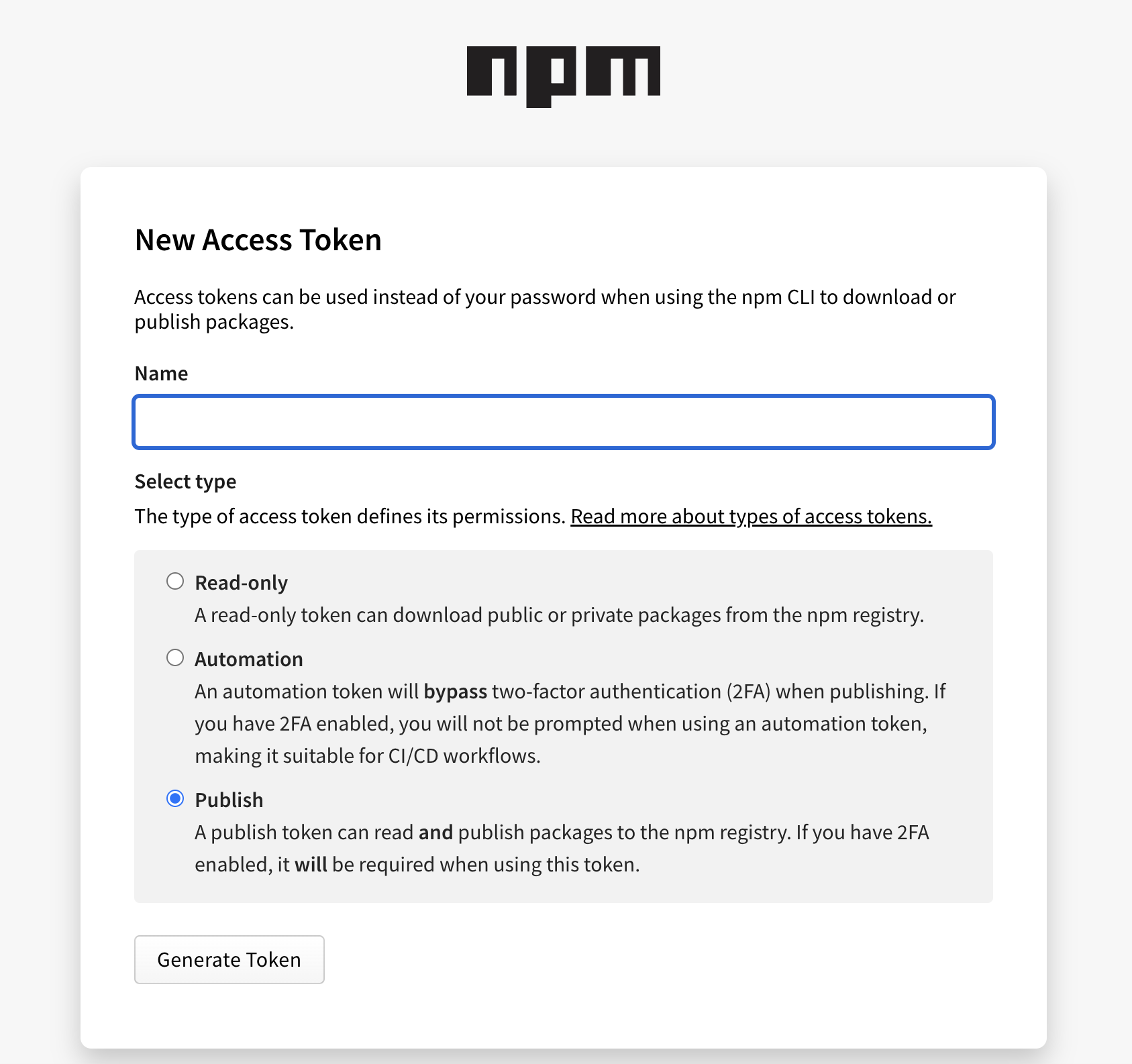
After generating the token, we need to create an environment variable in the github repo. The name of the variable will be `NODE_AUTH_TOKEN`. and copy the npm token as the secret here.
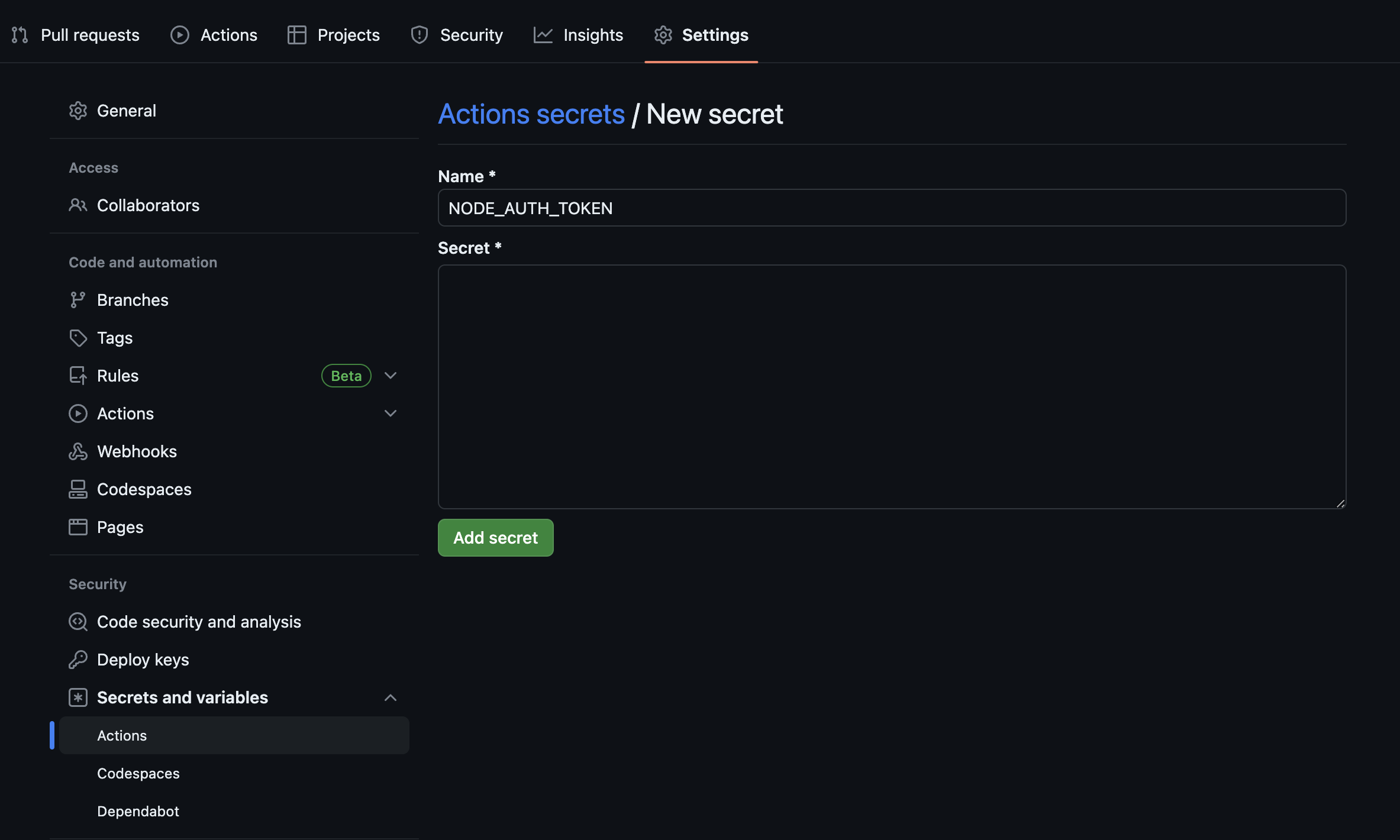
After this, we just need to create and publish a new tag to github and then github action will publish the package to the npm registry.
We will use using `changesets` to create a new tag. It will update the version in the `package.json` file and create a tag with the package name & version. If you don't want to use `changesets` then you can manually bump the `package.json` version and create a tag.
First, we need to run the `npx changeset` command from the root of the repo root. It will ask which package we need to update and what is the bump type.
```
npx changeset
```
Then we need to run the `version` command on the `changesets`. This will auto update the `package.json` versions.
```
npx changeset version
```
Then we need to run the `tag` command on the `changesets`. This will create the tags for the version updates. If `n` number of packages are updated then `n` number of tags will be created with their respective version. After that, we need to push the tags to the git repo.
```
npx changeset tag
git push --follow-tags
```
This will trigger the github action workflow and the package will be published to the npm. Then in the dependent apps, we need to uninstall the old local package and install the new one.
```sh
cd services/product-service
npm uninstall @rsbh-nodejs-microservices/protos
```
We also need to remove the `packages/protos` from the root `package.json` workspaces, delete the root `node_modules` directory, and the lockfiles and reinstall the package. This will install the package from the registry instead of the local symlink one.
```
npm i @rsbh-nodejs-microservices/protos
```
After removing the `protos` package from the root `package.json` workspaces, the `changesets` command will not show it during the version update. We need to manually copy it again in the `package.json` file and remove it after updating the version.
All the source code for this blog is available on GitHub.